Google Review QR Code Generator: Free QR Code | TableFlows
Google review QR code generator

Google Review QR Code Generator

Want more Google reviews without making guests search for you? Paste your Google review link below and download a QR code in seconds, free. When you want more than a code, TableFlows adds a review page with stars, a ready-to-print 4x6 card and scan tracking.

  • Free generator on this page
  • Printable 4x6 review card
  • Scan and click tracking

Get a free callback

Share your details and our team will contact you about TableFlows for your restaurant.

We only use your details to contact you about TableFlows.

What you get

Your own review QR

Add your Google review link once and download the QR as PNG or SVG, or print the ready-made card.

Pick stars, get a suggestion

Guests choose 1 to 5 stars and a suggested review appears. They can change it with Next or edit it before posting.

Straight to Google

One button copies the review and opens your Google review page, where the guest pastes and submits.

See what happens

The dashboard counts QR scans and clicks, so you know whether the card is being used.

Free Google review QR code generator

Paste your Google review link and download the QR code as a PNG. Print it on table cards, bills and posters. The code is made in your browser, so your link is not uploaded or stored.

Nothing leaves your device. The QR code is created in your browser.
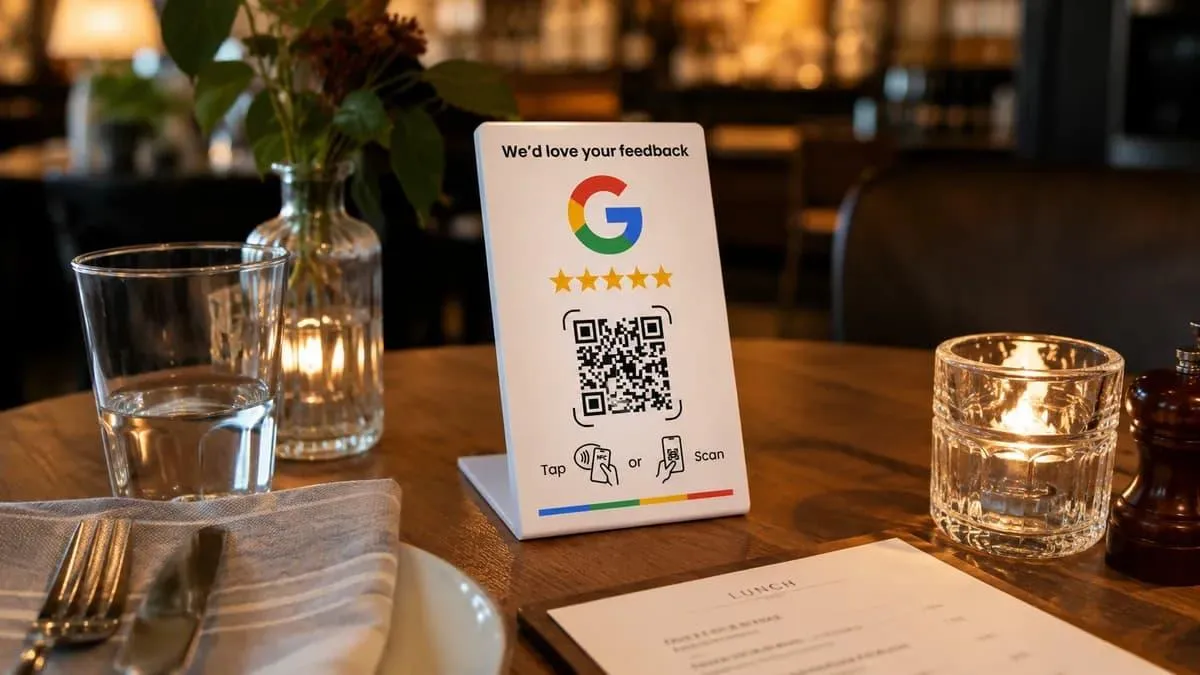
A table stand with a Google star-rating logo and a QR code that invites guests to leave feedback, on a restaurant table.

What is a Google review QR code generator?

A Google review QR code generator turns your Google Business Profile review link into a scannable code. Instead of asking guests to search for your business and find the review button, you hand them a code that opens your review page directly.

  • Guests land on your Google review page after one scan
  • Print it for tables, counters and bills
  • Share the image on WhatsApp, email and social media
  • No technical knowledge needed: paste a link, download a code

Features of the Google review QR code

Seven things that make collecting reviews easier for you and for your guests.

Easy QR code generation

Paste your Google review link into the generator above and get a scannable code at once.

Direct Google review link

Guests open your review page without searching for your business by name.

Download the code

Download a PNG from the free generator, or a PNG or SVG from your TableFlows dashboard.

Table cards

Put the code on every table so guests can review after the meal. The dashboard prints a ready 4x6 card.

Billing counter

Display the code near the counter or on the bill, where guests are relaxed and holding their phones.

Share it anywhere

Send the image by WhatsApp or email, or add it to your website and printed material.

Simple for everyone

No app and no training. Guests scan, sign in to Google and write their own words.

How to create a Google review QR code

Five steps, and the middle one takes seconds.

  1. Step 1

    Find your review link

    Open your Google Business Profile and choose the option to get more reviews or share your review link.

  2. Step 2

    Copy the link

    Copy the direct review link for your business.

  3. Step 3

    Generate the code

    Paste the link into the generator above and press Generate QR code.

  4. Step 4

    Download it

    Choose a size and download the PNG. Pick the largest size if you will print it.

  5. Step 5

    Share with guests

    Print it on table cards, bills, posters or visiting cards, or show it at your counter.

Test the printed code with your own phone before you place it on every table.
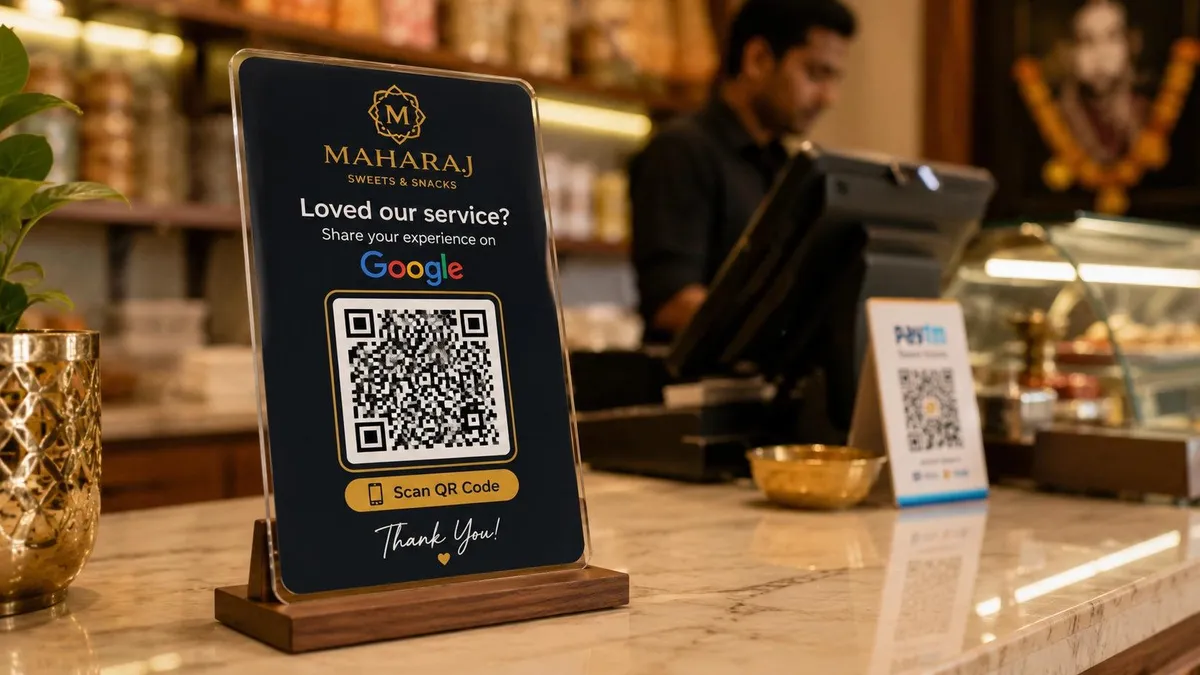
A review QR code stand on a shop counter that asks guests whether they loved the service, with a cashier behind it.

Best places to display your Google review QR code

Put the code where guests wait or pay, and where they already have a phone in their hand.

  • Restaurant tables and table tents
  • Billing counters and payment desks
  • Printed invoices and receipts
  • Product packaging
  • Business visiting cards
  • Reception areas
  • Store entrances
  • Customer thank-you cards

Who can use Google review QR codes?

Any business with a Google Business Profile and customers who carry a phone.

Restaurants

Ask for feedback after the meal, on the table or with the bill.

Cafes

Show the code on tables and at the billing counter.

Hotels

Make it easy for guests to share how their stay went.

Retail shops

Invite customers to review the shopping experience at the till.

Salons

Collect feedback after a beauty or grooming service.

Hospitals and clinics

Help patients find the business's review page.

Real estate agencies

Share your review link with clients after a deal.

Service providers

Encourage customers to share honest feedback after a job.

A guest in a cafe scanning a QR code on a wooden table stand with a phone while other guests work at tables behind.

How Google reviews help your business

New guests read what other people say before they choose where to eat. A Google Business Profile with genuine, recent reviews helps them decide, and tells you how you are doing.

  • Build trust and credibility with new guests
  • Show your reputation to people searching nearby
  • Give potential customers real information
  • Understand how satisfied your guests are
  • Spot what to improve
  • Strengthen your local online presence

Free generator or the Review QR in your account?

Both give you a code that opens your Google review page. The account version does more around it.

Free generator on this page

A plain QR code for your review link.

  • Paste a link and download a PNG
  • Add a short line of text under the code
  • Runs in your browser, nothing is uploaded
  • No account needed

Review QR in TableFlows

A review flow, not just a code.

  • A review page with 1 to 5 stars and a suggested review guests can edit
  • The Google button is shown to every guest, whatever the rating
  • A ready 4x6 card to print, plus PNG and SVG downloads
  • Scan and click counts in your dashboard
  • Part of your plan, from ₹39 per table. Start with a free 10-day trial.
Checklist

Ask for reviews the right way

Google asks businesses not to filter who may leave a public review, so show the code to every guest, not only the happy ones. Reviews only help if they are honest.

  1. 1Ask every guest, not only the ones who seem happy.
  2. 2Never offer a discount or gift in return for a review.
  3. 3Do not hide or remove negative feedback, and do not write reviews for guests.
  4. 4Reply politely to every review, good or bad.
  5. 5Use private feedback to fix problems before they become public. See customer feedback.

Frequently asked questions

What is a Google review QR code?

It is a scannable code that opens your Google Business Profile review page, so guests can leave feedback without searching for your business.

How can I generate a Google review QR code?

Copy your review link from your Google Business Profile, paste it into the generator on this page and download the code. Inside TableFlows you can also paste the link once and print a ready card.

Is the generator free?

Yes. The generator on this page is free and needs no account. The Review QR in your TableFlows dashboard is part of your plan, priced from ₹39 per table. Start with a free 10-day trial.

Can customers leave Google reviews by scanning a QR code?

Yes. Scanning opens your Google review page. Guests sign in to their Google account and write and submit their own review.

Does scanning the code submit a review automatically?

No. The code only opens your review page. Guests choose to write and submit a review themselves.

Can I print the QR code?

Yes. Download the code and print it on table cards, posters, invoices or visiting cards. In TableFlows you can print a ready 4x6 card.

Does a Google review QR code expire?

A static code that holds a standard Google review link does not expire by itself. It keeps working as long as the link it points to stays valid.

Can I share the code on WhatsApp?

Yes. Send the downloaded image on WhatsApp, by email or on social media.

Can I use one QR code for several locations?

Make a separate code for each location, so guests reach the right Google Business Profile.

Does this guarantee more Google reviews?

No tool can promise that. It removes the friction: scanning and reaching your review page takes seconds, which usually increases how many guests follow through.

Where do I find my Google review link?

Open your Google Business Profile, choose the option to get more reviews and copy the link.

Ready to try TableFlows?

Start your free 10-day trial. Your account is active right away, and no payment is needed to begin.

Start Free 10-Day Trial
Call WhatsApp